

DDM runs on 64-bit Windows 10 and Windows 11, and on 64-bit Linux: see On Linux. Builds for macOS are new and still experimental: see On a Mac.
Choose a download
Every version is on the Releases page. For Windows there are three files:
| File | What it is |
|---|---|
DannexDownloadManager-<version>-setup.exe |
The installer. Pick this one unless you have a reason not to. It can set up browser integration and open .torrent files and magnet links with DDM. |
DannexDownloadManager-<version>-portable.zip |
A portable copy. The download list and settings stay in a data folder next to the program, and nothing is written to the registry. Browser integration needs the installer. See Portable mode. |
DannexDownloadManager-<version>-x64.zip |
The same programs without an installer. It keeps its data in %APPDATA%\dannexdownloadmanager, like an installed copy. |
On Linux
DDM runs on 64-bit Linux with a desktop session. It is tested on Ubuntu 24.04, Debian 12 and
Fedora, with GNOME, KDE Plasma, Xfce and Cinnamon, on X11 and in Wayland sessions. Pick one
of these files (up to version 0.2.4, their names end in -experimental, as in
...-linux-x86_64-experimental.deb):
| File | What it is |
|---|---|
...-linux-x86_64.deb |
For Ubuntu, Debian, Mint and Pop!_OS: sudo apt install ./<file>.deb. It brings the libraries DDM needs. |
...-linux-x86_64.rpm |
For Fedora, openSUSE and RHEL: sudo dnf install ./<file>.rpm. It brings the libraries DDM needs. |
...-linux-x86_64.AppImage |
Runs on most distributions: make it executable (chmod +x) and run it. It updates itself in place (Help → Check for updates). |
...-linux-x86_64.tar.gz |
The plain programs, for any distribution. |
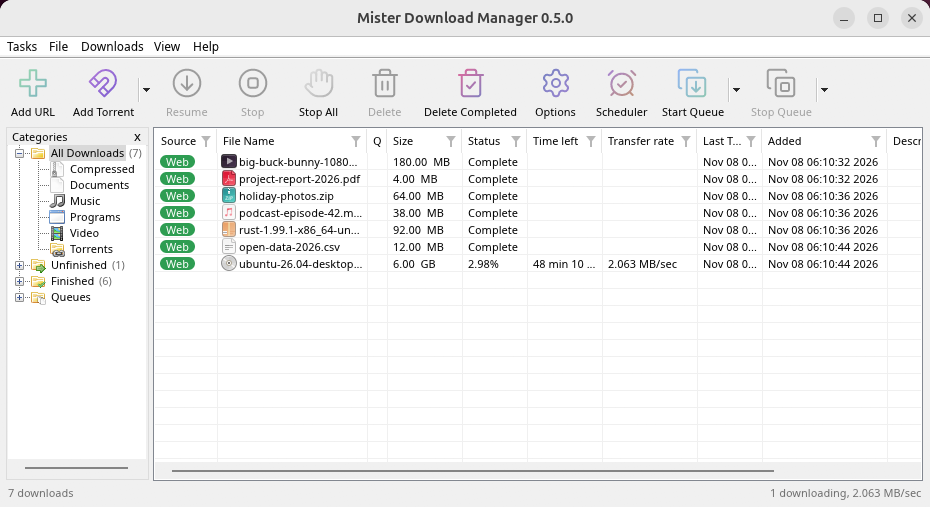
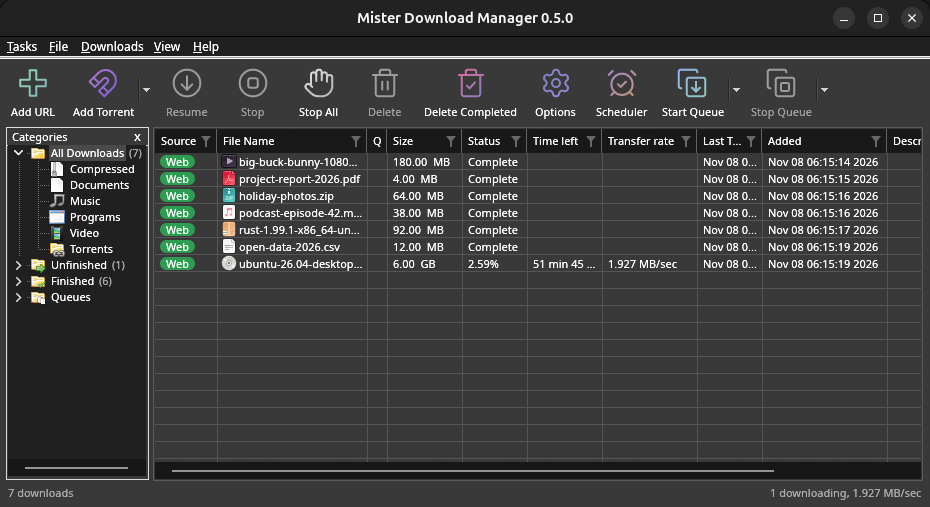
Browser integration is set up by DDM itself at each start (the browsers installed then are found); add the extension as in Browser integration. Firefox installed as a Snap (Ubuntu's) reaches DDM once you allow it; other Snap and Flatpak browsers can't (see Flatpak and Snap browsers). The tray icon, Dark Mode support and Launch on startup work on GNOME (Ubuntu's), KDE Plasma, Xfce and Cinnamon.
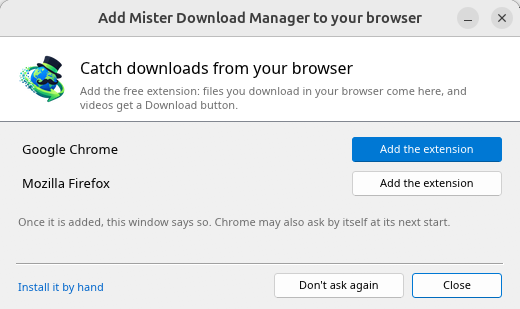
In a Wayland session the windows go through XWayland (below). Not there yet on Linux: screen readers (Orca) don't read DDM's windows; browsers installed as a Flatpak can't reach DDM (Firefox from Flathub may, through the desktop as the Snap does, but that isn't checked yet); and View → Draw with → Vulkan is a choice, OpenGL stays the default.
In a Wayland session (GNOME, KDE Plasma and others), DDM's windows run through XWayland when it is there: Wayland doesn't let a program place its own windows, so DDM's menus and drop-down lists would open in the middle of the screen. To run on Wayland itself anyway, start it with MDM_WAYLAND=1 dannexdownloadmanager. If the system lacks a library X11 windows need (such as libxkbcommon-x11, which the .deb and .rpm bring but the AppImage and the tar.gz can't), DDM opens on Wayland instead; with no window system it can use, it names what's missing and the command that installs it.
The windows are the ones described in this help, with the desktop's fonts, file icons and title bars:
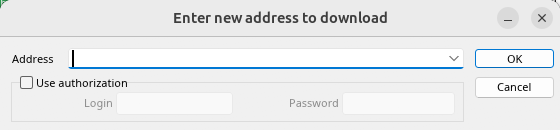
Add URL. 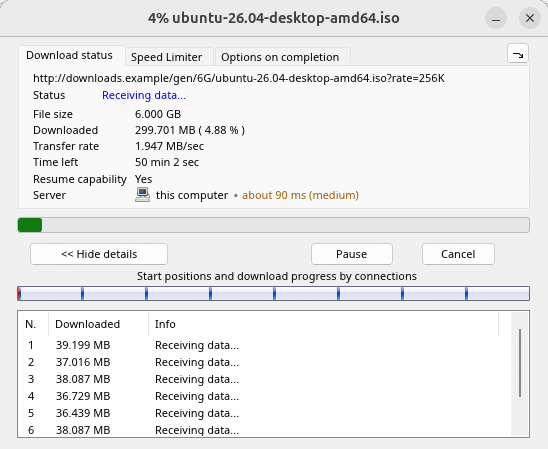
A download's progress. 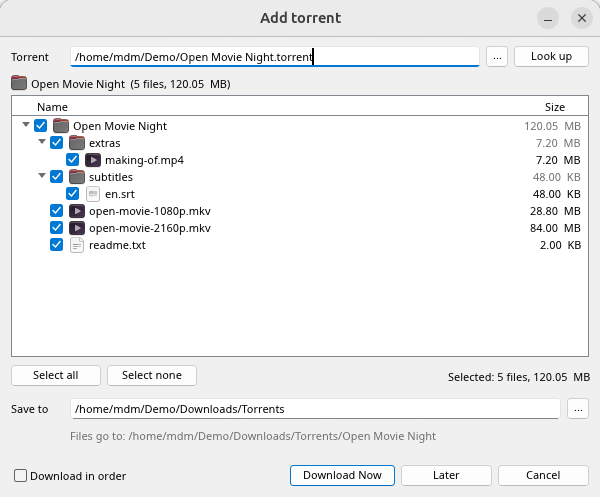
Add torrent. 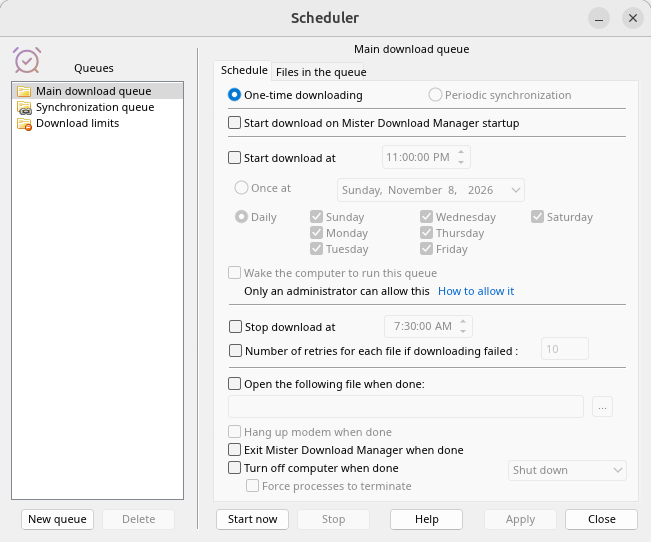
The Scheduler. 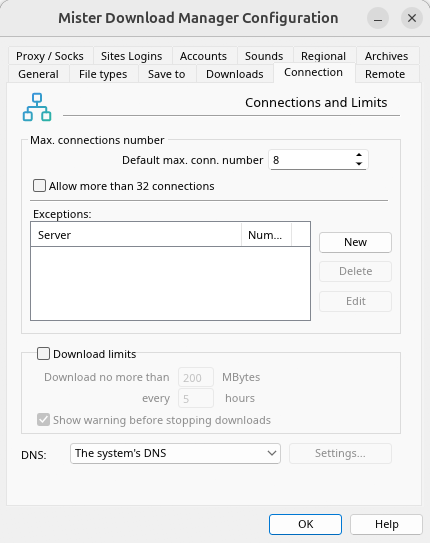
Options.
And on the other desktops it was checked on:
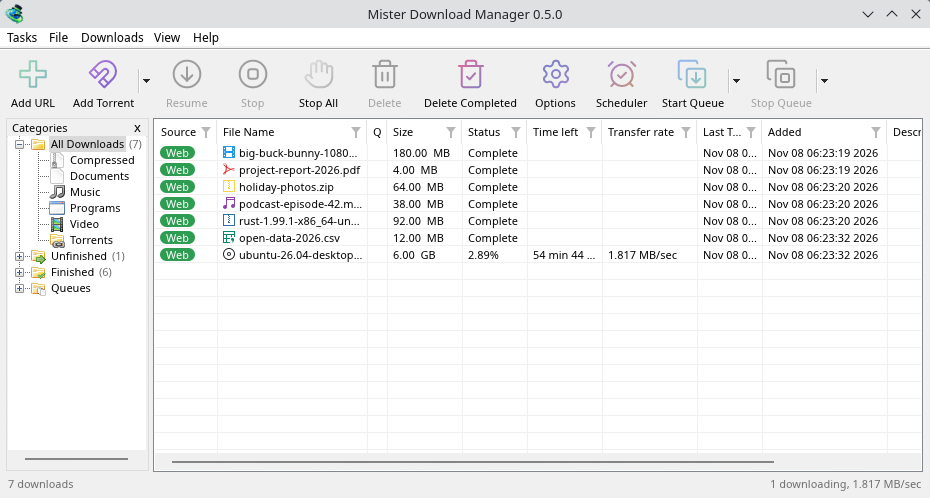
KDE Plasma. 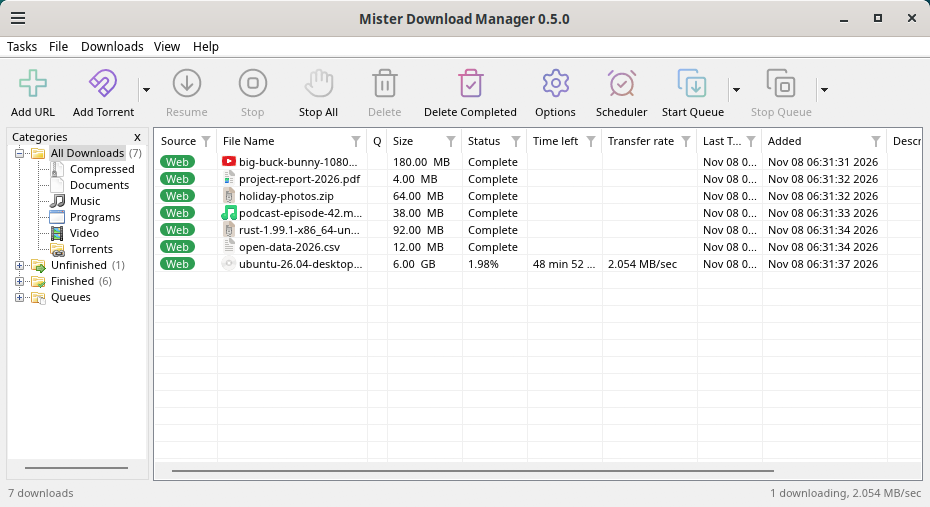
Cinnamon. 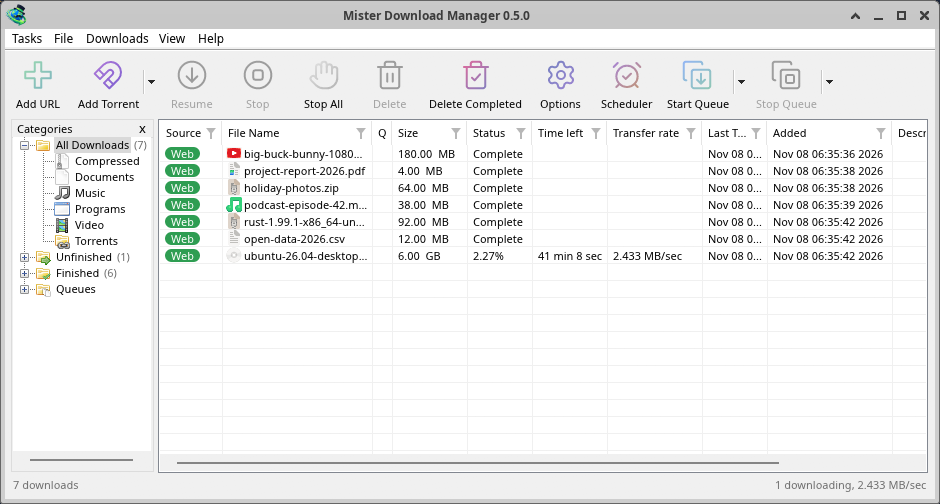
Xfce.
Uninstall on Linux
sudo apt remove dannexdownloadmanager (or sudo dnf remove dannexdownloadmanager) removes the
programs, and the small files that tell your browsers where DDM's helper is: the .deb and .rpm
install those for everyone (in /etc and /usr/lib), for Chrome, Chromium, Edge, Brave, Vivaldi,
Helium and Firefox (the Snap too), so DDM doesn't write them in your home folder. For the AppImage
or the tar.gz, delete the file or the folder.
What DDM keeps in your home folder stays, as with any package: your list and settings
(~/.local/share/dannexdownloadmanager), the AppImage's and the tar.gz's browser files, and
those of the browsers that read them only there (Opera, Helium, Thorium, and Firefox's forks:
Zen, LibreWolf, Floorp, Waterfox). A package can't remove those: it never touches
home folders. Without DDM they lead nowhere, so the extension says it can't reach DDM. To remove
them as well, run this as each user who used DDM, before uninstalling:
dannexdownloadmanager-nmhost --unregister
(From the AppImage: ~/.local/share/dannexdownloadmanager/browser-host/dannexdownloadmanager-nmhost --unregister.)
Already uninstalled? This removes the same files:
find ~/.mozilla ~/.librewolf ~/.config -name com.dannexdownloadmanager.host.json -delete 2>/dev/null
On a Mac
The macOS builds are fresh and still experimental: we haven't tried them on a Mac ourselves yet, so you'd be among the first. Please tell us how it went, good or bad.
| File | What it is |
|---|---|
...-macos-arm64-experimental.dmg |
For a Mac with Apple Silicon (M1 or later: Apple menu → About This Mac shows a Chip). Open it and drag Dannex Download Manager to Applications. macOS asks before its first start, because the app isn't notarized by Apple: right-click it and choose Open (on macOS 15 and later: System Settings → Privacy & Security → Open Anyway). |
...-macos-x86_64-experimental.dmg |
The same, for a Mac with an Intel processor (About This Mac shows a Processor). |
Browser integration is set up by DDM itself at each start (the browsers installed then are found); add the extension as in Browser integration.
Install with the setup
- Run
DannexDownloadManager-<version>-setup.exe. - Choose the language. Windows' display language is already selected. The setup offers every language DDM has, and DDM starts in the one you pick.
- Choose whether to install for you only or for everyone on the computer. For you only needs no administrator rights and goes to
%LOCALAPPDATA%\Programs\Dannex Download Manager. For everyone goes toProgram Files. - Pick what the setup should do: - Set up browser integration (Chrome, Edge, Brave, Firefox) - Open .torrent files and magnet links with Dannex Download Manager - Start Dannex Download Manager when Windows starts - Create a desktop shortcut (off unless you tick it)
- Click Install, then Finish to start DDM.
If DDM is already running, the setup asks it to save and close first. To update, use Help → Check for updates → Update now, or run the setup of the new version; your list and settings stay.
Browser integration needs one more step in each browser: adding the extension. It comes with DDM, in its extension folder, until the browsers' stores list it (on its way): in Chrome, Edge, Brave, Opera and Vivaldi, Load unpacked on the browser's extensions page; Firefox takes it as a file. Browser integration shows how.
Uninstall
Uninstall DDM from Windows Settings → Apps. The uninstaller asks whether to delete your download list and settings too. Your downloaded files are never touched.
Use a zip copy
- Unzip the file to a folder you can write to (not straight into
Program Files). - Run
dannexdownloadmanager.exe.
The zips hold the same programs as the setup: the app, dannexdownloadmanager-cli.exe (downloads from the command line; see Command line and automation) and the extension folder.
First start and the language
- Installed with the setup: DDM starts in the language you chose in the setup.
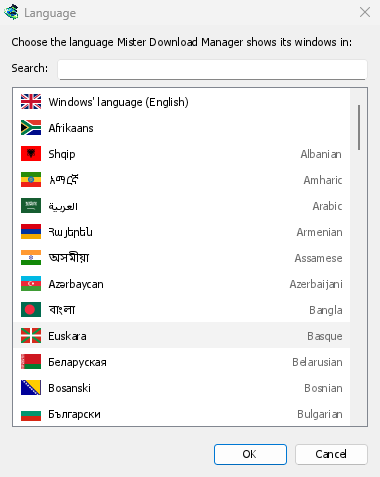
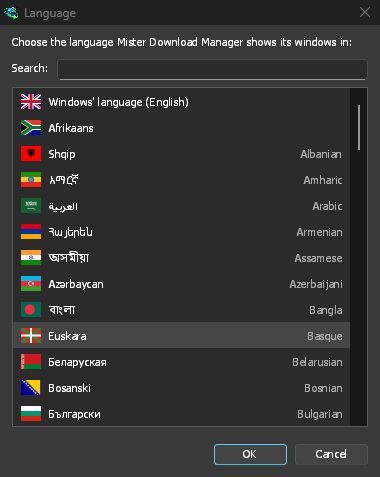
- Otherwise: DDM shows the list of languages, each with its flag and its own name. Pick yours.
You can change it at any time in View → Language. More in Languages.
The video helpers
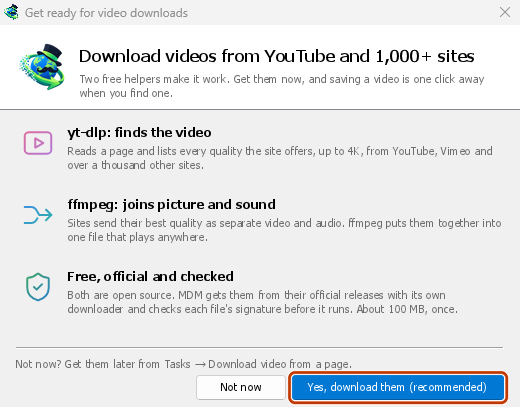
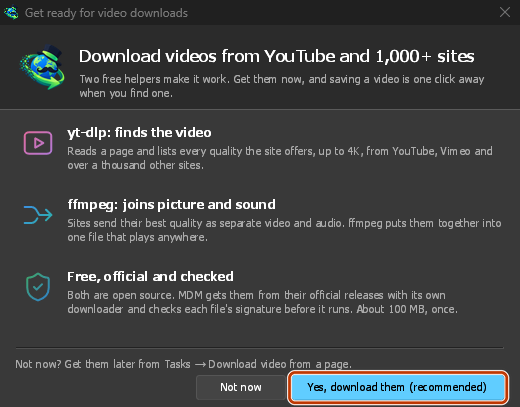
Next, DDM offers its two free video helpers: yt-dlp, which finds the video on a page, and ffmpeg, which joins its picture and sound. Click Yes, download them (recommended) and they download in the background, about 100 MB, once. Not now leaves them for later: the video window offers them when you first need them. More in Videos.
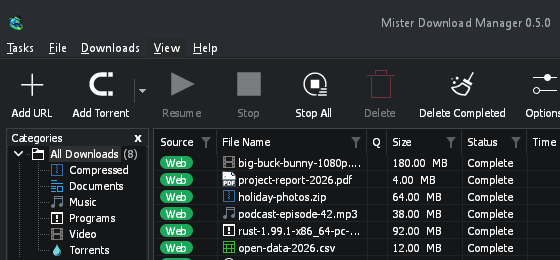
The main window
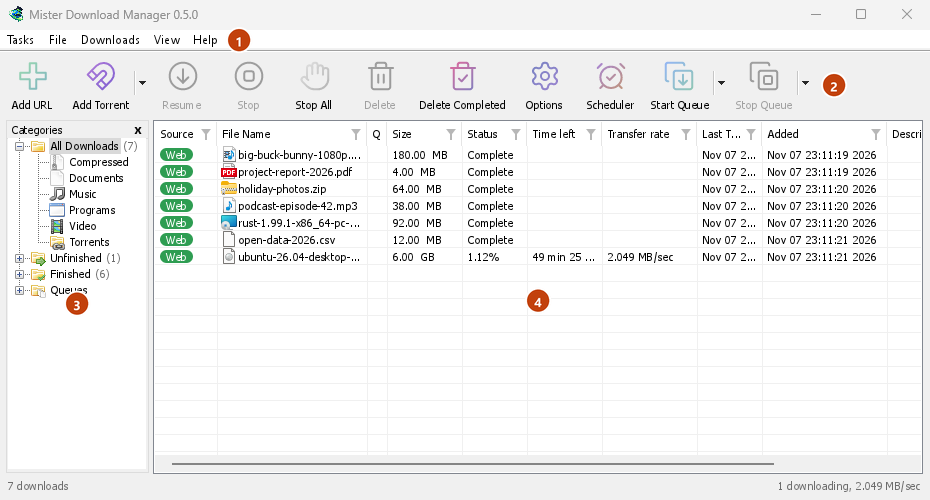
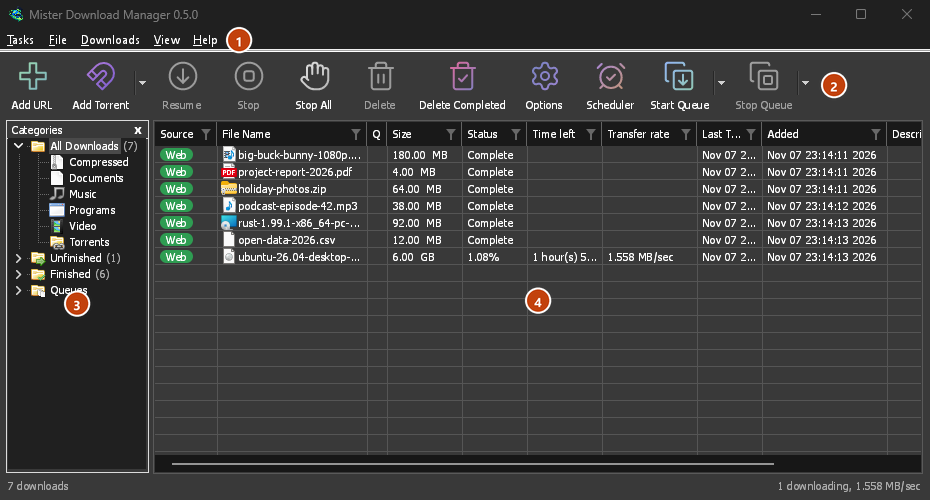
From top to bottom:
- Menu bar.
- Tasks — add downloads, torrents, magnet links, batch downloads and videos from a page; Torrent settings; Link grabber; RSS feeds; show the drop target; import and export the list; exit.
- File — the selected download: Stop Download, Remove, Download Now, Redownload.
- Downloads — Pause All, Stop All, Delete All Completed, Find, the Scheduler, queues, the Speed Limiter and Options.
- View — show or hide the categories, sort the list (Arrange files), Dark Mode support, Always dark, Theme, Interface size (every window larger, 100 % to 200 %; Ctrl +, Ctrl − and Ctrl 0 too), Text (Windows: smooth or classic letters), Draw with (OpenGL, or Direct3D on Windows, Vulkan on Linux, Metal on macOS) and Language.
- Help — help pages and tutorials (on the website, in your language when it has it), Keyboard shortcuts, Report a problem, Check for updates, About, Tell a friend and Original project (the page of Mister Download Manager, which DDM is built on).
- Toolbar. Add URL, Add Torrent, Resume, Stop, Stop All, Delete, Delete Completed, Options, Scheduler, Start Queue, Stop Queue, Grabber (the site grabber). The small arrow next to Add Torrent, Start Queue and Stop Queue opens more choices.
- Categories (left). Choose what the list shows: All Downloads, Unfinished, Finished and Queues, each with its categories. Drag the gap between the pane and the list to make it wider.
- Download list (right). One row per download. See The download list.
Dark mode
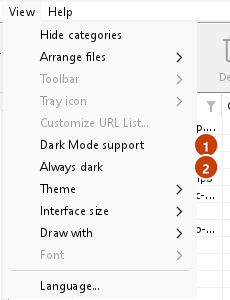
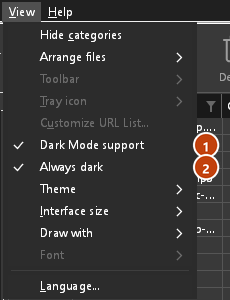
DDM follows your system: when Windows (or your desktop's light/dark preference on Linux and macOS) is set to dark mode, so is DDM. To keep DDM light whatever the system does, turn off View → Dark Mode support. To keep it dark whatever the system does, for example on a desktop that reports no preference, turn on View → Always dark.
Themes
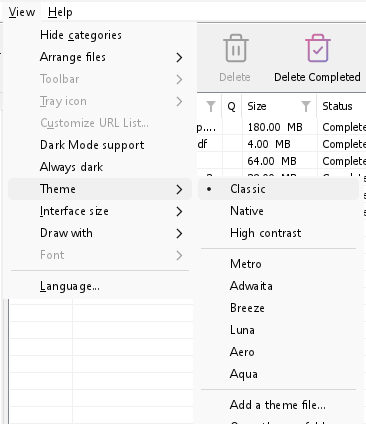
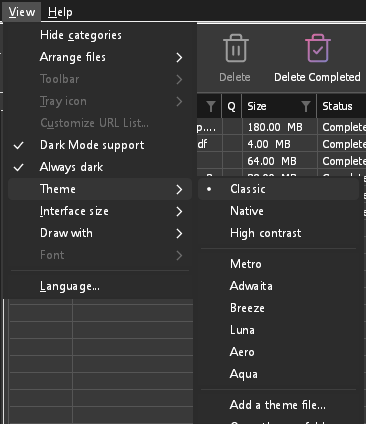
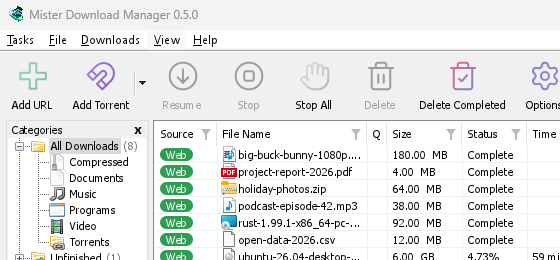
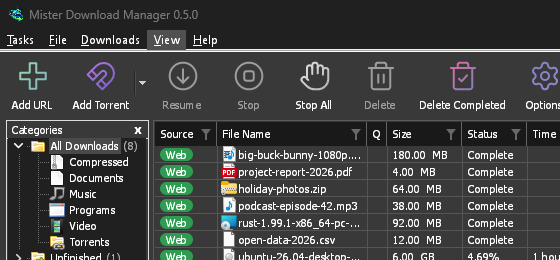
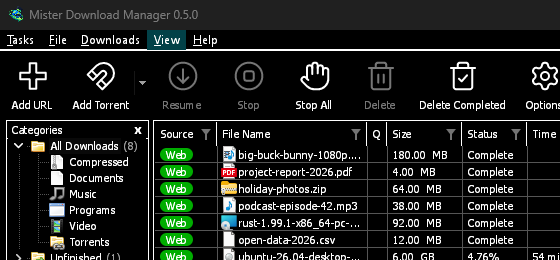
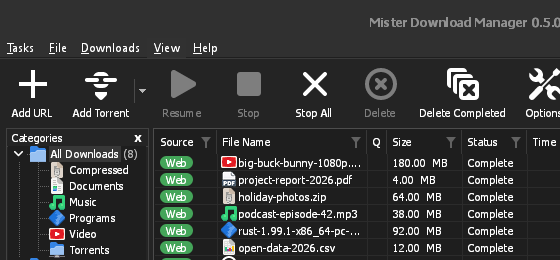
View → Theme changes DDM's look at once, keeping its layout:
- Classic: DDM's own look, the default.
- Native: your system's colours. Windows' accent colour (Settings → Personalization → Colors) and, when it is on, its contrast theme; the desktop's accent colour and its higher contrast setting on Linux (GNOME 47 and later, KDE Plasma); the accent colour on macOS. It follows them when you change them.
- High contrast: black and white, a bright accent, every edge drawn, text at 7:1 or more.
- Metro: Windows 8's flat look: square corners, flat buttons and boxes, a coloured title bar with the title centred (on Windows, where DDM draws it), and one-colour icons (Microsoft's Fluent UI System Icons).
- Adwaita: GNOME's look: round corners, flat grey buttons, a rounded focus ring, GNOME's check boxes, a header bar with the title in bold and round buttons (on Windows, where DDM draws it), and GNOME's Adwaita icons, in colour for files and categories, one colour in the toolbar.
- Breeze: KDE Plasma's look: rounded corners, buttons and boxes that take the accent's edge under the pointer or when focused, KDE's check boxes and focus frame, KDE's title bar with the title centred and round buttons (on Windows, where DDM draws it), and KDE's Breeze icons.
- Luna: Windows XP's look: buttons shaded from white with an orange glow under the pointer, green ticks, square text boxes, progress in green blocks, a deep blue title bar with the title in bold (on Windows, where DDM draws it), and colourful icons drawn for DDM in that manner.
- Aero: Windows 7's look: glossy buttons that turn light blue under the pointer, quiet check boxes, a glossy green progress bar, a glassy title bar with the title on a soft glow (on Windows), and glossy icons drawn for DDM in that manner.
- Aqua: Mac OS X's look: gel buttons round at the ends (the default one blue), glossy check boxes, a blue focus ring, a blue gel progress bar, a grey title bar with small round buttons (on Windows), and icons drawn for DDM in that manner.
- Emerald: a white canvas with one near-black ink and a ladder of neutral greys for structure, emerald fills that always carry near-black text rather than white, 6-point corners on every control, and Metro's one-colour icons.
Classic 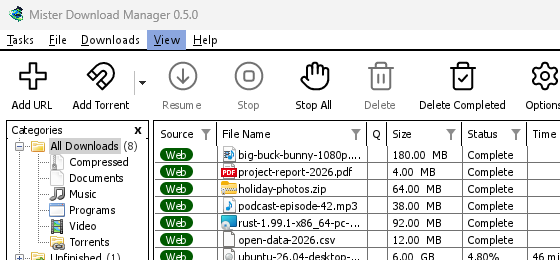
High contrast 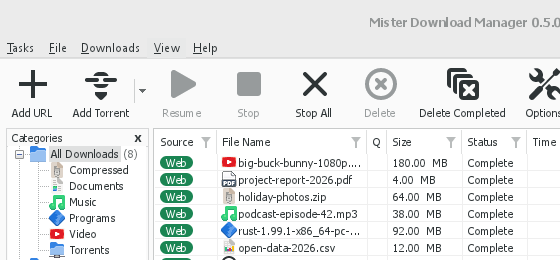
Adwaita 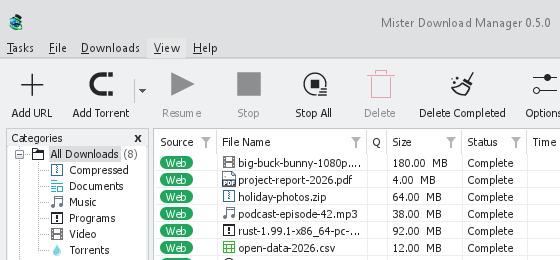
Breeze
Each has a light and a dark side: Dark Mode support and Always dark choose between
them as before. Theme files you put in the themes folder (View → Theme → Open themes folder)
are listed there too, and so are Base16 and pywal colour schemes (View → Theme → Add a theme
file…; pywal follows wal as it runs): Themes says where that folder is, what
a theme file holds (inherits, colours, sizes, control shapes, icons), how a scheme's colours are
used, and how to make and share one.
The toolbar
View → Toolbar chooses how the toolbar looks, at once: Large buttons (the default) or Small buttons, a lower toolbar with smaller icons and each label beside its icon. Untick Show text labels for icons only: hold the pointer over a button to see its name. Line style (the default) draws the buttons' icons as thin coloured lines, 3D style as glossy, shaded pictures; a theme with icons of its own (Metro, Adwaita, Breeze, Luna, Aero, Aqua) or High contrast keeps its own. Customize... chooses which buttons the toolbar shows (tick them) and their order (Move up, Move down); Reset shows every button again in its first order.
The tray icon
Closing the main window doesn't quit DDM. It hides in the notification area, and downloads, queues and schedules carry on. To make closing quit (a portable copy's folder can then be deleted), untick Options → General → Keep running when closing the window. If there is no icon for DDM at all — not in the notification area, nor behind the ^ hidden icons — the window minimizes to the taskbar instead, so downloads continue and there is a way back. An icon behind ^ can be clicked to bring the window back, and starting DDM again always does.
On Linux this needs a tray, which most desktops have (KDE Plasma, Xfce, Cinnamon, Ubuntu's GNOME or GNOME with the AppIndicator extension, waybar's tray). On a desktop without one (some tiling window managers), closing the window quits DDM, since there would be nowhere to bring it back from.
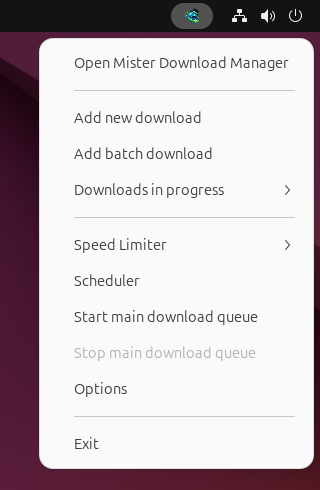
- Click the tray icon to bring the window back.
- Right-click it for Add new download, Add batch download, Downloads in progress, Speed Limiter, Scheduler, the main download queue, Options and Exit.
- Downloads in progress lists the running downloads. Choose one to see its progress window.
Minimize hides the main window there too, while Minimize to the notification area is on in Options → General. It is on by default; where the tray has no icon, Minimize sends the window to the taskbar instead.
A download's progress window can go there as well, with its Minimize or with its Hide to the notification area button: a short dash with an arrow down to the corner.
On Windows that button is in the window's title bar, left of Minimize, and in the title bar's menu (Alt+Space). On Linux and macOS it's at the end of the tab row.
To bring the window back, choose it in Downloads in progress, or double-click the download in the list.
To quit, choose Tasks → Exit or Exit in the tray menu.
View → DDM tray icon has the icon's own choices. 3D style (the default) shows DDM's icon in full colour; Flat style shows its mark flat, in one colour that suits the taskbar (white on a dark taskbar, dark on a light one, following Windows' setting as it changes; the menu bar's own colour on a Mac). While downloads run, a slim bar along the icon's foot fills as they progress. Don't show leaves no icon at all: closing the main window then minimizes it to the taskbar (the Dock on macOS) when Keep running when closing the window is on, and Minimize leaves it there too (on Linux, with no icon, closing quits DDM). Show download speed in the tray tooltip adds how many downloads run and how fast to the icon's tip. On Windows, Show progress on the taskbar button shows every running download's progress as one bar on DDM's taskbar button.
Where DDM keeps its data
The download list and settings are in %APPDATA%\dannexdownloadmanager (downloads.json); on Linux in ~/.local/share/dannexdownloadmanager, on a Mac in ~/Library/Application Support/dannexdownloadmanager. A portable copy keeps them in its data folder instead. Downloaded files go to your Downloads folder, sorted into a folder per category; you can change that in Options → Save to.
Next steps
Free, open source, no ads, no trial.
Download Dannex Download Manager